
Introduction to n8n: Creating a Virtual Assistant with AI (Part 3)

Now we’re entering a new level!
In the previous article, we connected our flow to an AI agent. The bot started interpreting messages and responding to them.
But simply chatting isn’t enough.
Today, we’re going to add memory to the agent, allowing it to maintain continuity in the conversation.
Without memory, each message stands alone. With memory, we have a real conversation.
Follow our page on LinkedIn for more content like this! 😉
What Is Memory in AI?
Memory is the mechanism that allows a model to retain the history of previous messages.
With memory, the model can:
Maintain context
Understand implicit references
Continue the conversation
Avoid repeating questions
In practice, it works by storing previous conversation messages and sending that history along with the new message to the model, allowing it to generate a response that considers all accumulated context up to that point.
Simple example:
User:
“I want to schedule an appointment.”

Assistant:
“For which day?”

User:
“Tomorrow.”
Without memory, the model doesn’t know that “tomorrow” refers to scheduling.
With memory, it understands perfectly.
Memory transforms message exchange into dialogue.
How Does Memory Work in n8n?
In n8n, memory is not automatic. It must be explicitly added to the workflow.
For this, n8n offers several options (see the official documentation).
Simple Memory
This is the easiest way to get started. It stores a configurable number of messages from the current session’s history.
Advantages:
Easy to configure
Ideal for prototypes
Great for simple workflows
Limitation:
Usually tied to the active session
Not persistent long-term
For many basic support use cases, this is already sufficient.
Persistent Memory Services
n8n also offers integration with external memory services, including:
Motorhead
Redis Chat Memory
Postgres Chat Memory
Xata
Zep
These options allow for:
Persistence across sessions
Scalability
Use in production environments
Durable history
Here we begin talking about more robust architecture.
Chat Memory Manager
If you need something more advanced, n8n provides the Chat Memory Manager node. It is useful when:
We cannot add a memory node directly
We need to manage memory size
We want to automatically reduce the stored history
We want to inject messages into the context as if they were from the user
This last feature is powerful. For example, we can insert additional instructions into the history to guide the agent’s behavior without the user explicitly seeing it.
Adding Memory to the Agent
We already have our Telegram support bot and our first workflow that responds to the user on Telegram. If you missed it, click here to access it.
Now, we will store the conversation history using the Simple Memory component.
If you don’t have it yet, create your n8n account and see how to create the Telegram bot here.
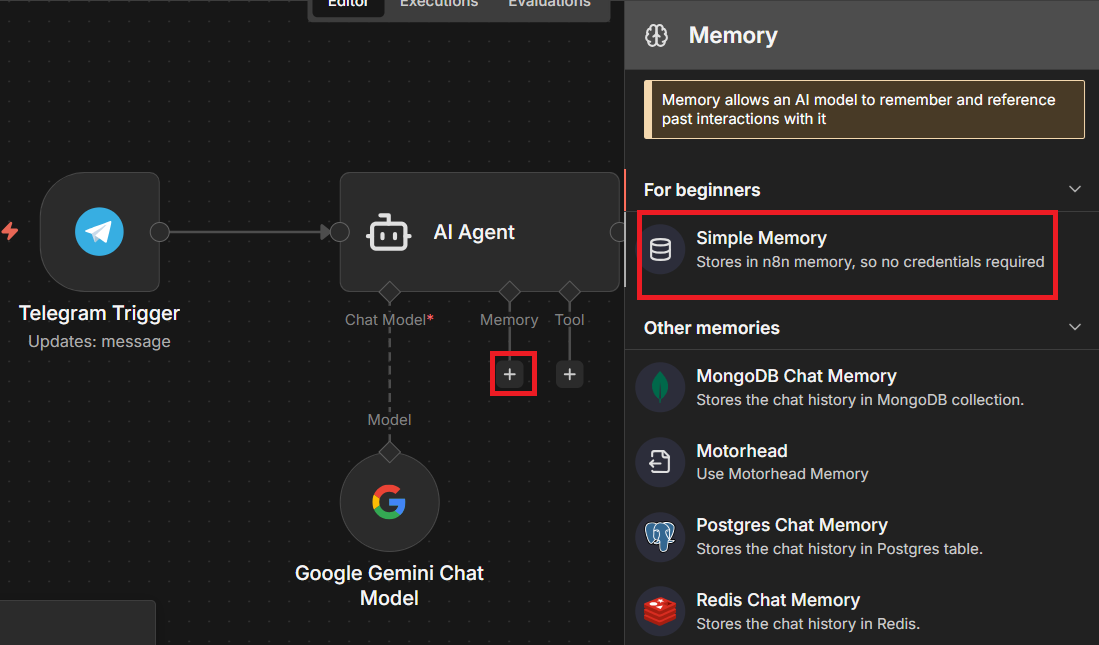
Open your workflow inside your workspace and let’s add the “Simple Memory” node in the “Memory” field.
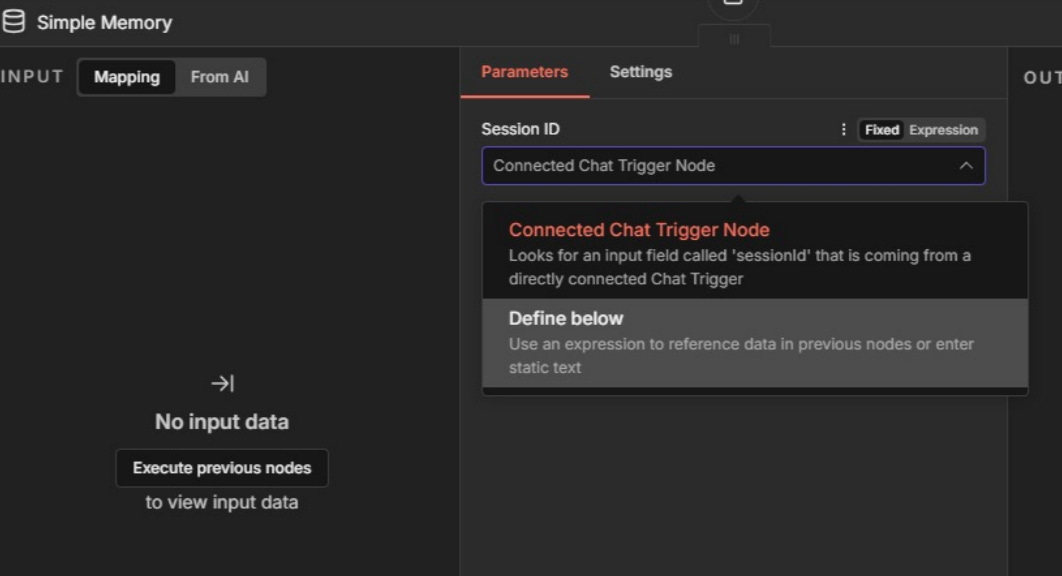
Let’s configure our component. Select the “Define below” option so we can manually define the “Session ID” in this field.
The memory node needs to know the conversation session identifier in order to properly store and retrieve the correct history.
Let’s drag the “chat.id” field into the “Key” field.
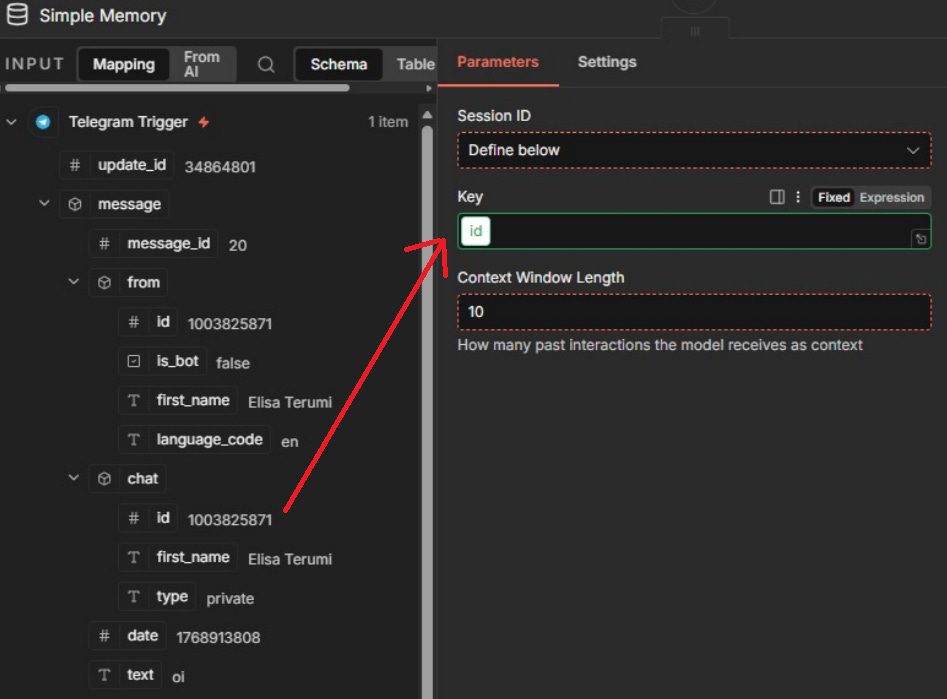
In the “Context Window Length” field, we’ll keep the value set to 10, so the model always receives the last 10 messages as context.
Now our workflow looks like this:
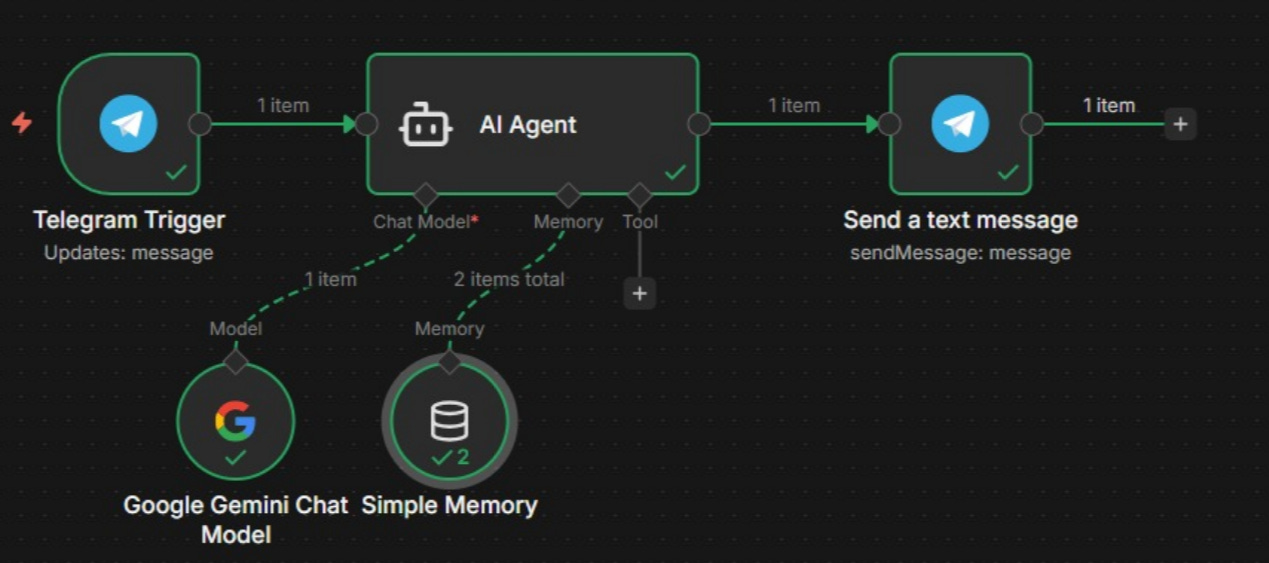
Let’s test it! Run the workflow and send a message on Telegram telling it your name. Then, ask the bot what your name is.
It should respond correctly. 🎉🎉🎉
What’s Coming in Part 4?
In the next article, we’ll allow the assistant to access Google Calendar.
It will move beyond simply chatting and start checking availability in real time.
We’ll give the agent the ability to verify time slots like a real assistant.
Our virtual assistant is starting to look professional.
And now the automation begins to move out of the experimental stage and into the real world.
See you in the next article! 🚀